Skip to content

Free and open-source

Rename lots of files at once, and see the result first

Set up a few simple rules, check every new name, then confirm. For Windows and Linux.

Download for free

Version 1.9.0All releases(opens in a new tab)

See how it works
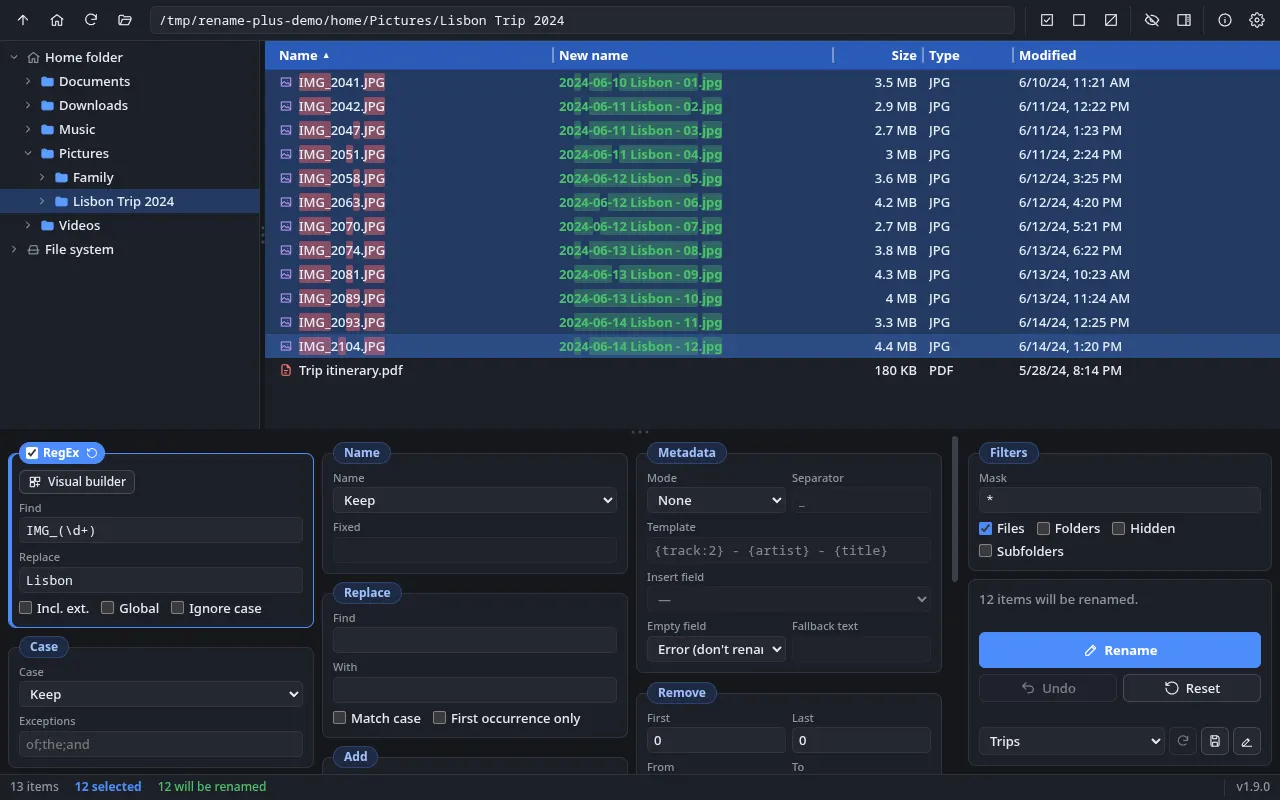
Rename Plus window: folder tree on the left, list of photos with their new names in green on the right and the rule panels at the bottom
The real app window: files on the right, new names in green and the rules below.

The problem

Renaming by hand is slow and error-prone

Holiday photos, invoices, album tracks: naming every file one by one takes ages, and typos slip through.

Names like these, piling up

  • IMG_2041.JPG
  • IMG_2041 (1).JPG
  • DSC_0042.jpeg
  • scan0003.PDF
  • WhatsApp Image 2024-06-11.jpeg
  • Final document FINAL v2.docx
  • track 1.MP3
  • Screenshot_20240612-101532.png

After Rename Plus

  • 2024-06-10 Lisbon - 01.jpg
  • 2024-06-10 Lisbon - 02.jpg
  • 2024-06-11 Lisbon - 03.jpg
  • Invoice 0003.pdf

Features

Everything you need to get names in order

Rules you can combine, with the result on screen before anything changes on disk.

  1. Visual RegEx builder

    Build rules by snapping together blocks like “Start of name”, “Numbers” and “Exact text”. No code required.

    Example:IMG_2041.JPGFoto 2041.JPG

    Technical details

    Generates the regular expression with capture groups (“Match 1”, “Match 2”…) that you can reuse in the replacement. The final expression stays visible so you can check it.

    Animation: in the Visual RegEx builder, the “IMG_1234 → Photo 1234” example assembles the blocks, the test shows IMG_2041.JPG becoming Photo 2041.JPG and the rule is applied to the photos

    Animation: in the Visual RegEx builder, the “IMG_1234 → Photo 1234” example assembles the blocks, the test shows IMG_2041.JPG becoming Photo 2041.JPG and the rule is applied to the photos

  2. Photo and music metadata

    Build names from what's inside the file: the date a photo was taken, the camera, or the artist, album and track of a song.

    Example:Track01.mp301. Opening Theme 2022.mp3

    Technical details

    Templates with fields, such as {track:2} - {artist} - {title}, that replace the name or go in as a prefix/suffix. Reads EXIF from photos (JPEG, HEIC, RAW) and tags from music (MP3, FLAC, OGG, M4A…) without freezing the interface. Auto date can also use the date a photo was taken. Forbidden characters in values (AC/DC) become “-”, and a file missing a field isn't renamed unless you set a fallback text. In the details panel, clicking a value adds that field to the template.

    Animation: in the Metadata panel, Replace name mode turns the tracks Track01.mp3 to Track05.mp3 into “01 - The Midnight Orchestra - Opening Theme.mp3” and the rest; then the template becomes “{track:2}. {title}”, the year is added from the Insert field list and the names read “01. Opening Theme 2022.mp3”

    Animation: in the Metadata panel, Replace name mode turns the tracks Track01.mp3 to Track05.mp3 into “01 - The Midnight Orchestra - Opening Theme.mp3” and the rest; then the template becomes “{track:2}. {title}”, the year is added from the Insert field list and the names read “01. Opening Theme 2022.mp3”

  3. Watch folders

    Pick a folder such as Downloads: every new file that lands there is renamed and, if you like, moved. It even works with the app closed.

    Example:power bill.pdfDocuments/Invoices/2026-10-30_Power Bill.pdf

    Technical details

    File mask (*.pdf; *.jpg), waits for the file to finish being written, ignores downloads in progress (.crdownload, .part), never overwrites and runs in the background in your session (tray on Windows, XDG Autostart on Linux). Numbering picks up where it left off, even after closing the app. Includes an activity log.

    Animation: in Settings, a watch folder is created for Downloads with the Case and Auto date rules, moving files to Documents/Invoices; the activity log shows “power bill.pdf” becoming “2026-10-30_Power Bill.pdf”

    Animation: in Settings, a watch folder is created for Downloads with the Case and Auto date rules, moving files to Documents/Invoices; the activity log shows “power bill.pdf” becoming “2026-10-30_Power Bill.pdf”

  4. Presets

    Save a combination of rules under a name, like “Trip”, and apply it again with one click. Later you can update, rename and reorder them.

    Example:IMG_2041.JPGTrip_1.JPG

    Technical details

    The update button stores the current rules in the preset in use, the edit button opens the list to rename, delete and reorder, and “None” goes back to the rules you had before. Saved presets can also be used as the rules for watch folders.

    Animation: the rules that rename the photos to Trip_1.JPG, Trip_2.JPG… are saved as the “Trip” preset, cleared with Reset and restored from the list; then the edit list opens and “Trip” moves up to first place

    Animation: the rules that rename the photos to Trip_1.JPG, Trip_2.JPG… are saved as the “Trip” preset, cleared with Reset and restored from the list; then the edit list opens and “Trip” moves up to first place

  5. Windows and Linux

    Runs on Windows and Linux, with a light or dark theme, in English, Portuguese and Spanish.

    • Windows
    • Linux
    • PT · EN · ES
    • Explorer
    • Dolphin
    • Nautilus
    • Nemo
    • Thunar
    • Caja
    • PCManFM
    Technical details

    Electron + React + TypeScript. NSIS installer on Windows and AppImage on Linux. “Open in Rename Plus” in the context menu of File Explorer, Dolphin, Nautilus, Nemo, Thunar, Caja and PCManFM, plus opening from the command line.

    Animation: in Settings, under Appearance, the theme switches from dark to light and back; then the language buttons, with flags, switch the interface to Português and back to English

    Animation: in Settings, under Appearance, the theme switches from dark to light and back; then the language buttons, with flags, switch the interface to Português and back to English

  6. Live preview and safety

    You see every new name before you confirm. Conflicts show up in red, and you can undo the last batch.

    Example:IMG_2041.JPGfoto.JPG

    Technical details

    All-or-nothing renaming in two steps (so files can swap names, a ↔ b), automatic rollback if something fails, checks for names each system forbids (CON, NUL, “/”…) and never overwrites.

    Animation: with the fixed name “foto”, all six rows turn red and the Rename button is blocked; turning on Numbering gives foto_1.JPG to foto_6.JPG and the conflict goes away

    Animation: with the fixed name “foto”, all six rows turn red and the Rename button is blocked; turning on Numbering gives foto_1.JPG to foto_6.JPG and the conflict goes away

  7. Rules that combine

    Replace text, change letter case, add dates, number files, change the extension and more, all at once.

    Example:IMG_2041.JPGTrip 2041.jpg

    Technical details

    Fixed order: RegEx → Name → Metadata → Replace → Case → Remove → Add → Auto date → Folder name → Numbering → Extension. Each rule can be switched on and off without losing what you filled in.

    Animation: Replace swaps “IMG_” for “Trip ” and the Extension rule lowercases “.JPG”; the New name column shows Trip 2041.jpg and the rest

    Animation: Replace swaps “IMG_” for “Trip ” and the Extension rule lowercases “.JPG”; the New name column shows Trip 2041.jpg and the rest

  8. Built-in file manager

    Organize files without leaving the app: cut, copy, paste, create folders and rename a single item. You can also drag folders and files onto the window.

    Example:IMG_2041.JPGLisboa IMG_2041.JPG

    Technical details

    Keyboard shortcuts to cut, copy, paste, rename (F2) and move to the trash. Dragged files open their folder with them already selected, and names are validated as you type (forbidden characters, reserved names). The details panel shows a preview of photos (HEIC included) and videos, plus information about the selected item.

    Animation: the Trip folder is dragged onto the window and opens with the photos; a single file is renamed, the app rejects the “/” in the name and accepts “Lisboa IMG_2041.JPG”

    Animation: the Trip folder is dragged onto the window and opens with the photos; a single file is renamed, the app rejects the “/” in the name and accepts “Lisboa IMG_2041.JPG”

Step by step

One file, several rules

Each rule works on the result of the one before, always in the same order.

  1. 0OriginalThe name straight from the camera.IMG_2041.JPG
  2. 1RegExReplaces “IMG_2041” with “Lisbon”.Lisbon.JPG
  3. 2Auto datePuts the file's date in front.2024-06-10 Lisbon.JPG
  4. 3NumberingAdds “ - 01” at the end.2024-06-10 Lisbon - 01.JPG
  5. 4ExtensionMakes the extension lowercase.2024-06-10 Lisbon - 01.jpg

Visual builder

RegEx without memorizing symbols

Blocks snap in from left to right. The app writes the expression for you.

Watch folders

It lands, it gets sorted

A PDF lands in Downloads, gets the date in front, switches to Title Case and moves itself to the right folder.

How it works

Three steps, no surprises

  1. 1

    Open the folder

    From the folder tree, by dragging it onto the window, or with “Open in Rename Plus” in your file manager.

  2. 2

    Set up rules with a live preview

    The “New name” column shows the result for every file as you type.

  3. 3

    Confirm

    Click Rename. Changed your mind? Undo the last batch.

Safety

Nothing changes on disk until you confirm

Rename Plus is built so it won't mess up your files.

  • Preview every name

    The new name shows up first, only for the items you selected.

  • Conflicts in red

    A duplicate name, an existing file or a forbidden character: the row turns red and the Rename button is blocked.

  • All or nothing

    If something fails halfway, whatever was already renamed goes back to its original name.

  • Undo

    Undo the last batch while the app is open. And it never overwrites an existing file.

For developers

Open source, as it is

Rename Plus is open-source under the GPL 3.0 license. Browse the code, open issues and send your contributions.

Stack

  • Electron
  • React
  • TypeScript
  • Vite
  • Vitest
  • Biome
  • electron-builder

Rule order

  1. RegEx
  2. Name
  3. Metadata
  4. Replace
  5. Case
  6. Remove
  7. Add
  8. Auto date
  9. Folder name
  10. Numbering
  11. Extension

Transparency

Inspired by Bulk Rename Utility, but independent: written from scratch, using none of its code and with no affiliation with its authors.

What it doesn't do yet

  • Reads metadata from photos and music only: not from videos or document properties, and it never writes metadata to files.
  • Doesn't run scripts or import name lists from CSV.
  • Doesn't change dates, attributes or permissions; only names.
  • “Undo” covers only the last batch, while the app is open.
  • With hundreds of thousands of items, selecting and previewing get slower. The list pauses at 150,000 and asks whether to load them all.
  • Doesn't run on macOS yet. On Windows, it's still being validated on real machines.

Support the project

Help Rename Plus grow

Rename Plus is free and built in spare time. If it saved you some work, there are simple ways to give back, and the first one costs nothing.

Leave a star on GitHub

It takes two seconds and makes a real difference: projects with more stars gain relevance, show up more in searches and earn the trust of newcomers.

Join the community

Ask questions, share the rules you built, suggest features and follow the news on r/RenamePlus.

Found a problem?

Hit a bug, spotted an odd text or have a feature idea? Open an issue on GitHub and tell us what happened.

Make a donation

Any amount helps keep development going and bring new features, like macOS support.

Donate with PayPal(opens in a new tab)
QR code to donate to Rename Plus via PayPal
Or scan it with your phone

FAQ

Quick answers

Is it free?

Yes. You can download and use it without paying anything, on Windows and Linux.

Is it open-source? Can I contribute?

Yes. The code is on GitHub under the GPL 3.0 license. You can open issues with bugs or ideas and send pull requests.

Does it work on a Mac?

Not yet. macOS support is planned. Today the app runs on Windows (64-bit) and Linux (64-bit, AppImage).

How do I find out about new versions?

The app checks on its own when it opens and every 12 hours, and lets you know when a new version is out, without downloading or installing anything by itself. On Linux, from version 1.9.0, AppImage managers such as Gear Lever and AppImageUpdate can also update it.

Do I need to know RegEx?

No. Most rules are simple fields, like replacing text or numbering. For more advanced searches, the visual builder puts the expression together from blocks.

Does it overwrite files?

Never. If a new name repeats another one or matches an existing file, the row turns red and renaming is blocked. And you can undo the last batch.

Ready to get your files in order?

Free, open-source and no sign-up. Download it and try it on your next messy folder.

Download for free

Version 1.9.0All releases(opens in a new tab)

Windows and Linux, 64-bit. macOS coming soon.